Create a Hunt
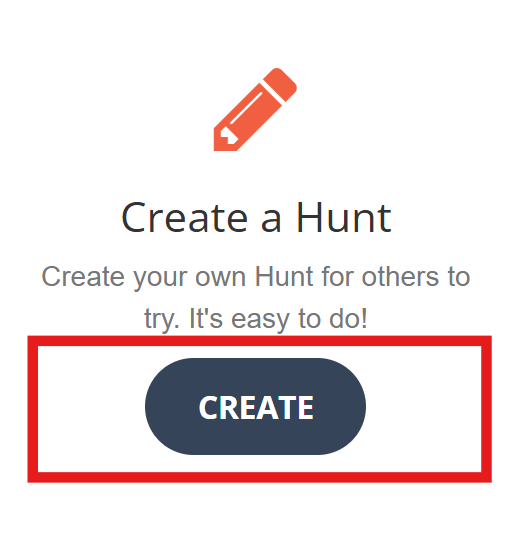
Click the Create button on the home page under the Create a Hunt heading to access the edit hunt page.
The edit hunt page walks you step-by-step through the process of creating a hunt, adding clues to it and activating it for others to play. By default,
the hunt starts out in editing mode, meaning it is not published to the public hunts page yet.
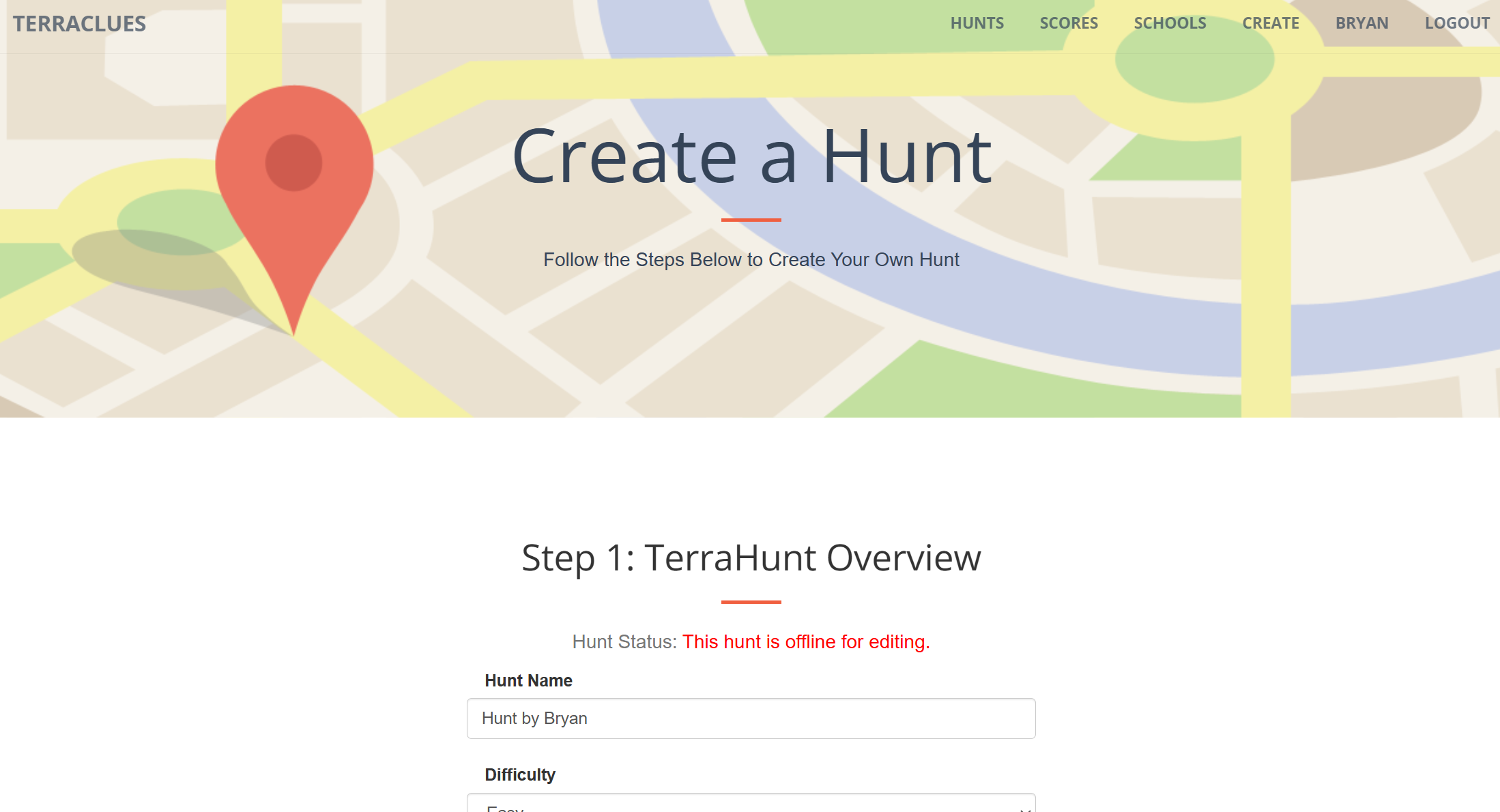
Step 1: Hunt Overview
Enter basic information about your hunt to help people find your hunt and
determine how it appears in search results.
- Hunt Name - The hunt name is one of the most important pieces of information. Make it clear what the hunt is about and try to give it a catchy name to encourage people to play it.
- Difficulty - People of all ages play TerraClues so difficulty level is subjective. Choose the level you think best matches what most players will think.
- Hunt Description - Enter a hunt description to describe the theme of your hunt or to provide special instructions, hints or tips to players.
- Private - Check the box to mark a hunt as private to hide it on the public hunts page. You will need to share a direct link with your friends for them to play it.
- Tags - Add tags to your hunt based on the categories it falls in. This makes it easy for players to find similar hunts.
Step 2: Manage Clues
The heart of TerraClues is of course, the clues. In fact, it's right in the name. In this step, add one or more clues to guide players to the hidden locations.
Clues can be text, an image or both.
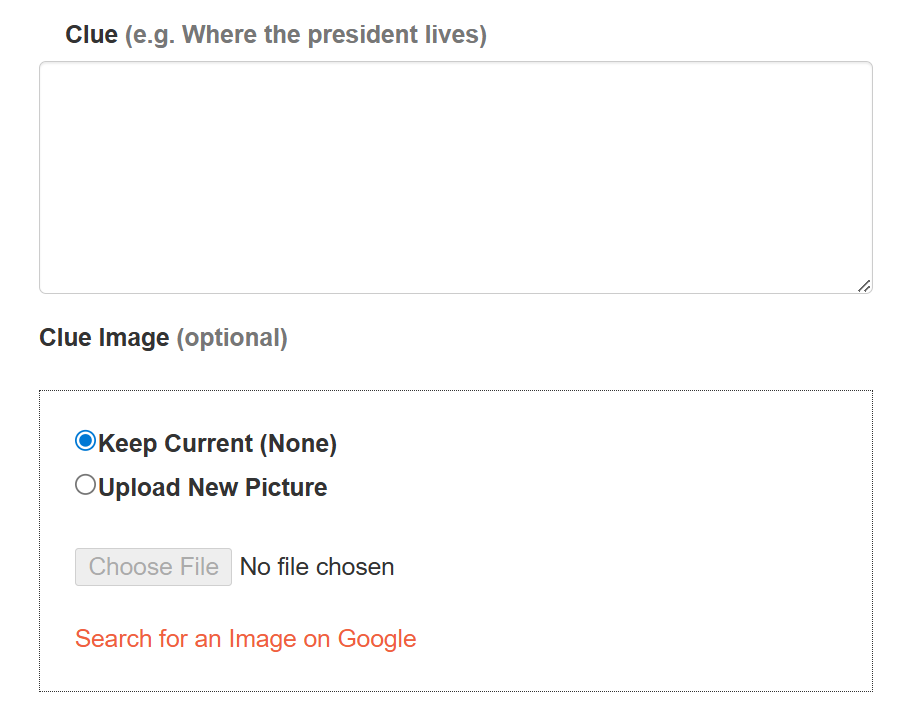
- Clue - The clue is a written hint to the user about where the hidden location is.
- Clue Image - As the saying goes, a picture is worth a thousand words. Sometimes it is helpful to include an image, and sometimes it's better to only have an image as the clue.
The goal of TerraClues is to find hidden locations based on clues. When the player finds a hidden location,
a popup bubble will appear on the map telling them that they found the location. It's a good idea to include
some information or interesting facts about the location.
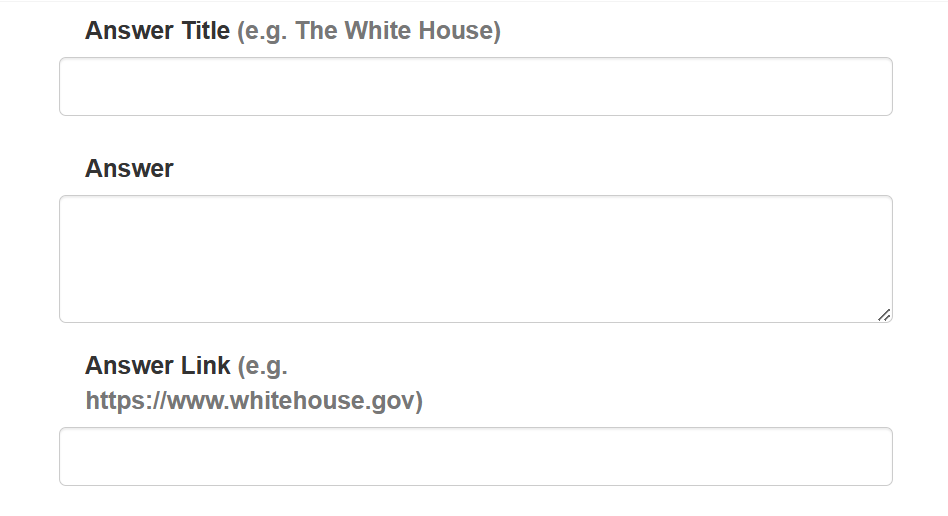
- Answer Title - The name of the hidden location..
- Answer - A description of the hidden location or additional information about the clue or possibly the next clue.
- Answer Link - The URL for a link to where the player can learn more about the hidden location. Wikipedia is a great destination for these links.
Hidden locations are the treasure players are looking for. Locations can be anywhere on the map.
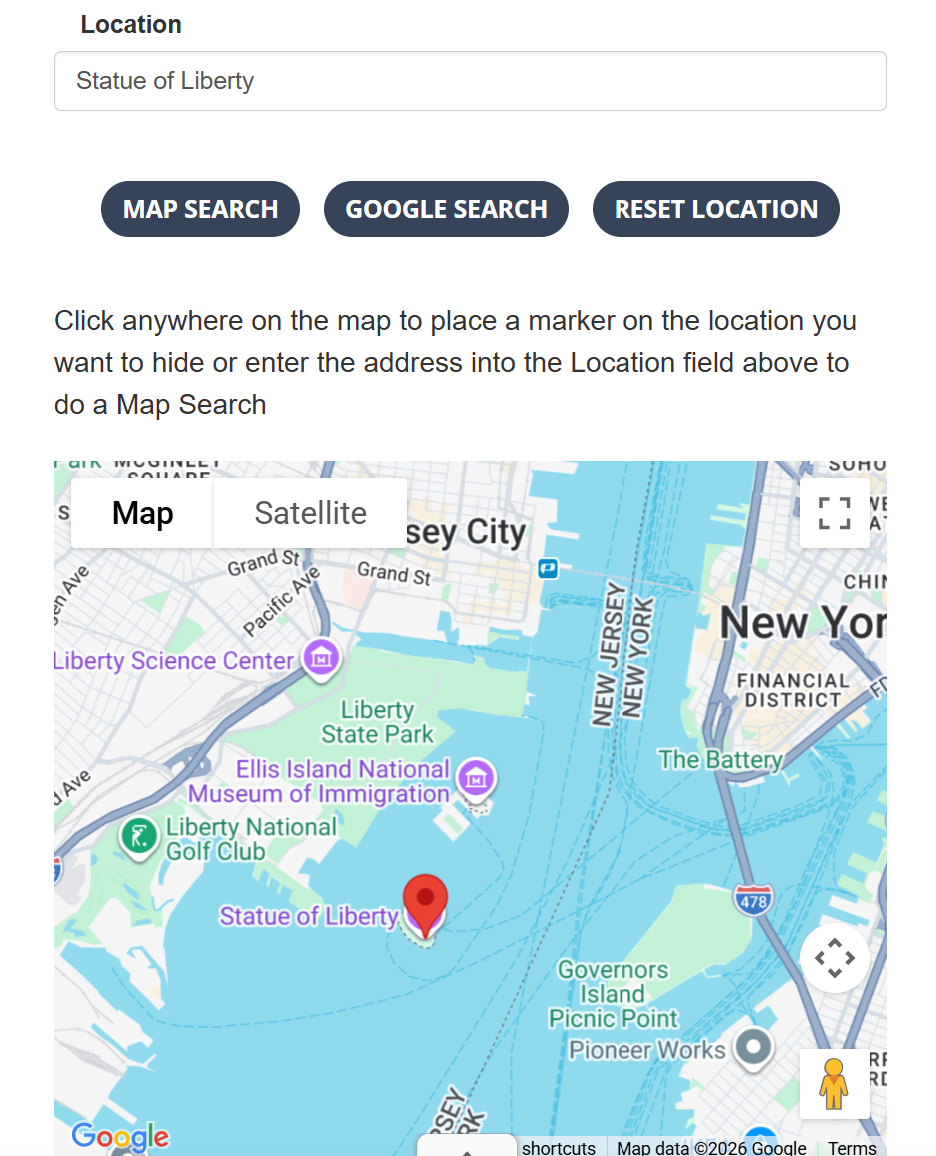
Enter a map search keyword in the Location box and press the enter key or click Map Search to search for the location on the map. If found,
a pin will be placed on the map at the exact location. Choose the Minimum Zoom Level to Find Clue.
For a popular monument like the Statue of Liberty, you will likely want this to
be a high number, like 13. For a wide area like a city or state, you will want a lower number, like 7.
Use the buttons below the clue to save the clue, delete it, add additional clues or change order of clues by moving them up or down in the list.

Step 3: Activate this Hunt
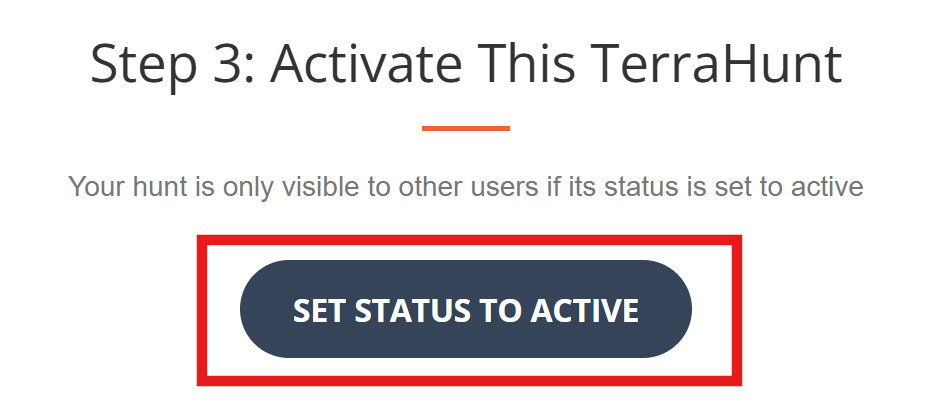
While you are creating a hunt, it is in a draft status and does not appear onthe public hunts page. To publish it, you need to activate it. Click the button to Set Status to Active.
Congratulations! Your hunt is now ready for others to enjoy.
Share With Friends
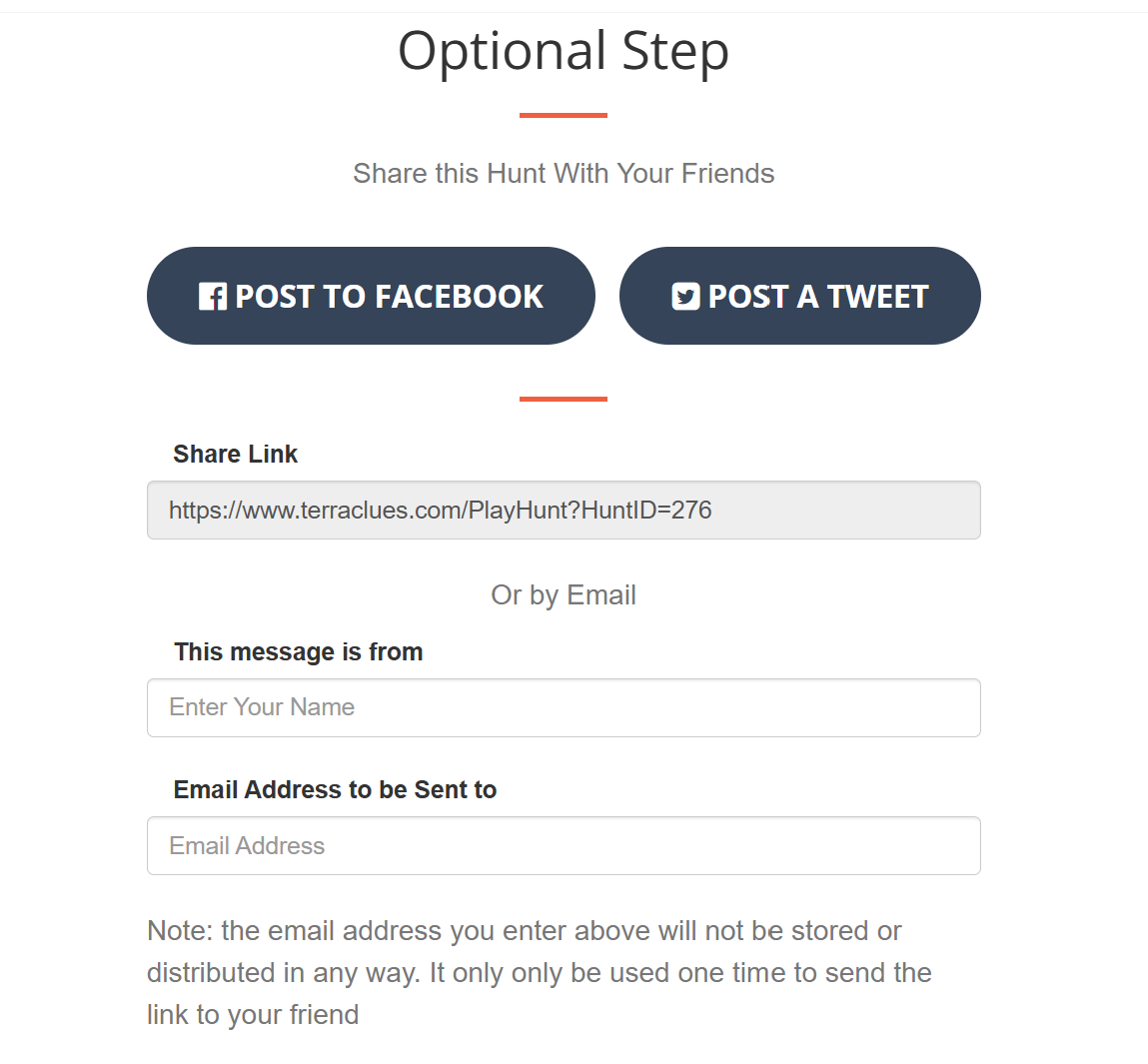
Whether you marked your hunt as private or public, challenge your friends to solve the puzzle you created. Copy the
share link and post to your social media accounts. Optionally, choose to have the link emailed to one of your contacts.
Note, we do not store email addresses entered in the email form and will never contact these individuals for marketing purposes.
The email address you enter is only used one time to send the share link.
Modifying a Hunt
If you need to fix a typo in a hunt or make changes to make it easier or more challenging, you can
edit hunts you created any time. Find hunts you created in two places:
- On your profile page
- Under the My Hunts speed dial button on the public hunts page
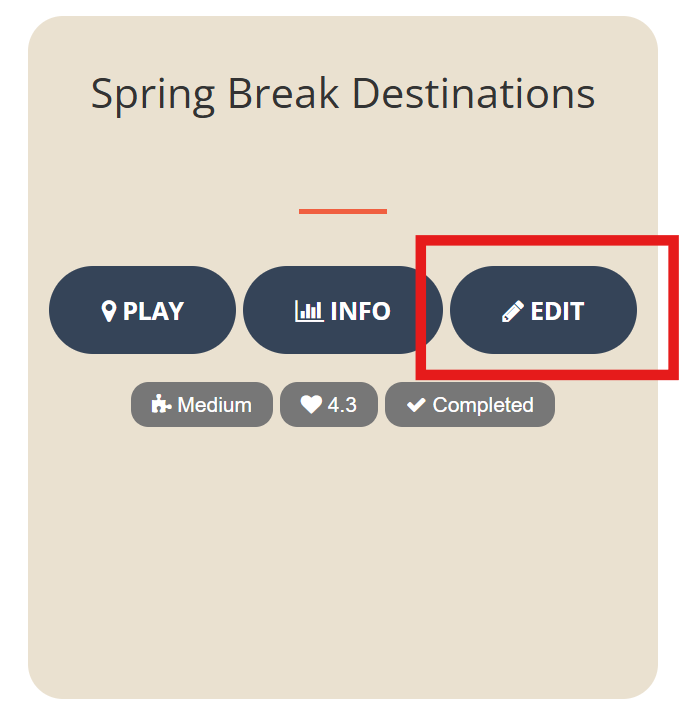
Click the Edit button the hunt card to make changes to a hunt.
Click the button to Take Hunt Offline to put it back into draft mode and hide it temporarily from the public hunts page. When
you are finished making changes, remember to click Set Status to Active to publish it again and make it available to players.
Tips for Creating a Great Hunt
There is an art to creating a fun hunt that is not too easy, not too hard and just the right length to play. Different players
enjoy different styles of hunts, but here are some tips we have found lead to a hunt being high quality and enjoyable by most players.
- By default, hunts are named "Hunt by <your username>". Replace this with a name that describes the theme of the hunt so players know what it is about.
- Keep hunt names around 25 characters long.
- Keep hunt descriptions around 150 characters long.
- Include between 5-7 clues.
- Incldue an image with the clue if helpful without giving the answer away.
- Keep clue descriptions around 120 characters long.
- Keep answer titles around 20 characters long.
- Keep answer descriptions around 150 characters long.
- Include a link to more information about hte answer.
More Help Topics